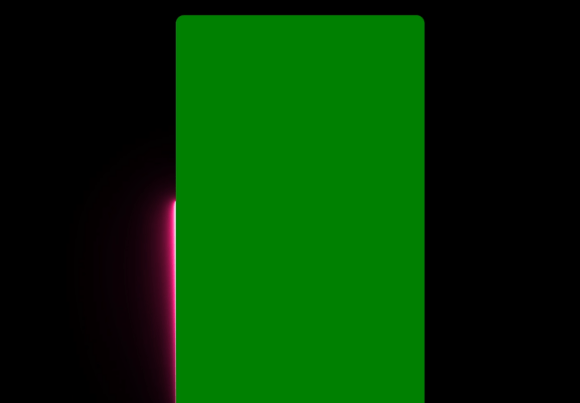
Red Line Green Screen Animation
Red Line Green Screen Animation is a specialized motion graphics asset designed to provide high-contrast linear elements that can be cleanly isolated from their background during post-production. Unlike static overlays or pre-composited effects, this animation delivers a bright red line element against a uniform green background, allowing editors to key out the green and leave only the red line visible over any footage, interface, or design. The result is a flexible, reusable graphic that fits naturally into alert screens, glitch transitions, sci-fi edits, high-energy intros, gaming overlays, and warning visuals.
For professionals working in video production, motion design, and content creation, the value lies not in the asset itself but in how it integrates into a broader editorial workflow. A Red Line Green Screen Animation is not a finished effect; it is a raw material that becomes part of a larger composite. Understanding where it fits before, during, and after your editing process determines whether it saves you time or creates additional cleanup work.
Pre-Production Planning and Asset Preparation
Before you import any footage, the first consideration is how the red line element will interact with your final composition. The green screen background is deliberately uniform to simplify chroma keying, but the success of that key depends on your source footage, lighting conditions, and the specific software you use. If you are working with highly compressed or low-bitrate footage, the green background may carry artifacts that complicate the key. Planning ahead means choosing a resolution and frame rate that match your project settings so you do not introduce unnecessary compression on import.
Organizing your asset library is another practical step. Store your Red Line Green Screen Animation clips in a dedicated folder with clear naming conventions that indicate duration, motion style, and intended use. For example, a clip labeled “red_line_sweep_LtoR_30fps_1080p” immediately tells you the direction, frame rate, and resolution. This organization prevents you from hunting through generic folders when you are mid-edit and need a specific motion path.
Preparation also extends to your editing timeline. Create a placeholder layer or track where the keyed red line will sit. If you are building a complex composition with multiple overlays, warning elements, and transitions, consider using adjustment layers or nested sequences to keep the keying separate from other color grading or effects. This separation makes it easier to adjust the key later without affecting the rest of your composite.
Integration During the Editing Phase
When you bring the Red Line Green Screen Animation into your timeline, the first task is removing the green background. In most major video editing applications, this is done with a chroma key or Ultra Key effect. Start by sampling the green color with the eyedropper tool, then adjust the tolerance and edge softness to eliminate the green without clipping the red line itself. The red line should remain crisp, with no green spill or halo around its edges.
One common mistake is over-adjusting the key settings to completely eliminate the green, which can also remove thin parts of the red line or introduce jagged edges. A better approach is to dial in the key just enough to remove most of the green, then use a garbage matte or mask to crop out any remaining green areas that are far from the line. This leaves the core line intact while handling the background separately.
Once keyed, the red line animation becomes a layer that can be positioned, scaled, rotated, and blended with the footage beneath. In sci-fi edits or high-energy intros, you might place the line as a scanning element across a UI interface or as a motion trail behind a moving subject. For gaming overlays, the line can serve as a health indicator, warning boundary, or directional marker. Because the green screen background is fully removed, the red line can also be recolored using tint or hue adjustments if you want it to match a specific brand or palette.
Practical Use Cases Across Different Workflows
The versatility of Red Line Green Screen Animation means it fits naturally into several distinct production contexts. Below are four common scenarios where this asset streamlines the editing process.
Alert Screens and Warning Visuals
For alert screens, the red line often functions as a framing element, a pulsing border, or a directional indicator that draws attention to a specific area. When composited over a darkened background or a paused video frame, the red line creates immediate visual urgency. This is useful for security camera overlays, system warning mockups, or live stream alert graphics. You can pair the red line with text layers, icons, or audio cues to build a complete warning sequence without animating the line from scratch.
Glitch Transitions and Sci-Fi Edits
In glitch transitions, the red line can be combined with distortion effects, flicker, and chromatic aberration to create a tech- or horror-themed transition between scenes. The key advantage of using a pre-animated asset is that the motion is already smooth and timed. You simply key out the green, apply some additional effects like displacement or blur, and sync the transition to your timeline. For sci-fi edits, the red line can act as a laser sight, data stream, or holographic scan line. Layering multiple red line animations at different scales and opacities creates a dense, futuristic UI without requiring a full compositing application.
High-Energy Intros and Openers
For intro sequences, speed is everything. A Red Line Green Screen Animation provides a dynamic motion element that can be layered with fast cuts, kinetic typography, and percussive music. The red line can sweep across the screen, divide the frame, or trace out shapes that reveal the title. Because the green screen background is easily removed, you can place the line over any existing footage or background without worrying about color matching. This saves significant time compared to rotoscoping or hand-animating a line for each project.
Gaming Overlays and Live Stream Graphics
In gaming and live streaming, the red line is often used for health bars, progress indicators, or boundary warnings. The green screen background allows the overlay to be placed directly over gameplay footage with minimal setup. Streamers can create a library of red line animations for different games or scenarios, then swap them in as needed. Because the key is consistent across all clips, you can batch-process multiple overlays in a single editing session.
Post-Production Refinements and Quality Control
After the initial key is applied, review the composite at full resolution to check for any remaining green spill, especially if the red line appears against a dark background. Green spill can be subtle and may only become visible during color grading. If you notice a faint green edge, use a spill suppression effect or manually desaturate the green channel around the line. For the best results, apply the chroma key on a separate adjustment layer so you can tweak it without altering the original clip.
Consistency across multiple uses is important, especially if you are building a template or a branded package. Save your key settings as a preset once you have refined them. This preset can be applied to any future Red Line Green Screen Animation clips, ensuring the same quality and edge treatment every time. If you work in a team, share the preset along with the asset library so everyone produces the same visual result.
Long-term usability depends on how you handle the original files. Keep the green screen clips in an uncompressed or lightly compressed format. Highly compressed versions may introduce macroblocking that makes the key less reliable. If storage space is a concern, store the original clips on an archive drive and generate proxy files for daily editing. This workflow preserves the quality of the green screen while keeping your active projects responsive.
Compatibility Across Major Video Editing Software
One of the practical strengths of Red Line Green Screen Animation is its broad compatibility. Because the asset is delivered as a standard video file with a uniform green background, it works in any application that supports chroma key. In Adobe Premiere Pro, the Ultra Key effect handles the green cleanly with minimal adjustment. In DaVinci Resolve, the 3D Keyer or HSL Qualifier can isolate the red line with precise control over the color range. In Final Cut Pro, the Luma Keyer combined with a color mask offers a similar result. For editors using After Effects, the Keylight effect provides the most flexibility, including spill suppression and edge blending.
For live production environments, such as OBS Studio or vMix, the green screen background can be removed in real time using the built-in chroma key filters. The red line will appear as a live overlay on your stream or broadcast. Because the motion is pre-rendered, it does not require real time rendering of complex animations, which keeps CPU usage low and your stream stable.
Mobile editing apps like LumaFusion or CapCut also support chroma key, though the precision may be lower than desktop applications. If you edit on mobile, test the key on a short clip first to confirm that the green is being removed without artifacts. In most cases, the uniform green of the Red Line Green Screen Animation keys well even on mobile platforms, provided the input clip is high quality.
Efficiency and Asset Reusability
The primary advantage of using a pre-animated red line on a green screen is efficiency. Instead of building a motion path, adjusting keyframes, and rendering a line animation for each new project, you import a finished animation and key it in seconds. Over multiple projects, this time saving adds up significantly. A single asset can be reused in dozens of contexts, from corporate safety videos to personal gaming streams, without any additional animation work.
To maximize reusability, treat the red line animation as a modular component. Combine it with other green screen assets, such as warning icons, text layers, or background scans, to build a cohesive visual language. Because all these assets share the same green background, they can be keyed in a single pass or with identical settings. This modular approach is especially useful for agencies, production houses, or content teams that produce similar content repeatedly.
For individual creators and freelancers, a library of green screen animations reduces the barrier to creating polished content. You do not need to be a motion graphics specialist to produce a high-energy intro or a professional-looking alert screen. The animation is already done; your role is to place it where it adds value and to adjust the composite for your specific context.
Final Observations on Workflow Integration
Red Line Green Screen Animation is most effective when it is treated as part of a deliberate editorial process, not as a plug and play fix. The time spent planning how the red line will interact with your footage, adjusting the key settings carefully, and reviewing the final composite for quality directly determines the professionalism of the final output. Rushing the key or ignoring spill can result in a distracting artifact that undermines the intended effect.
For entrepreneurs, educators, and marketers who produce video content regularly, building a standard workflow around green screen assets simplifies production and ensures consistent quality. Whether you are creating onboarding videos, promotional content, or live stream alerts, the red line animation provides a reliable visual cue that viewers recognize as intentional and polished. By understanding the technical and creative factors that influence its use, you can integrate this asset smoothly into your existing routine and focus your energy on storytelling, editing, and audience engagement.